
Google Merchant Center Misrepresentation: How to Fix It in 2027

// tl;dr
Misrepresentation is a trust problem with your whole store. Finish business verification, make your business details match everywhere, fix your policy pages and feed, remove anything fake, then request one careful review.
You open Merchant Center and see a red banner. Your products are gone from Google Shopping. Your ads stopped overnight. The only reason given is one word: "Misrepresentation."
A Google Merchant Center misrepresentation suspension is one of the most stressful problems a store owner can face. Google rarely tells you what is wrong. And if you guess and ask for a review too soon, you can make things worse.
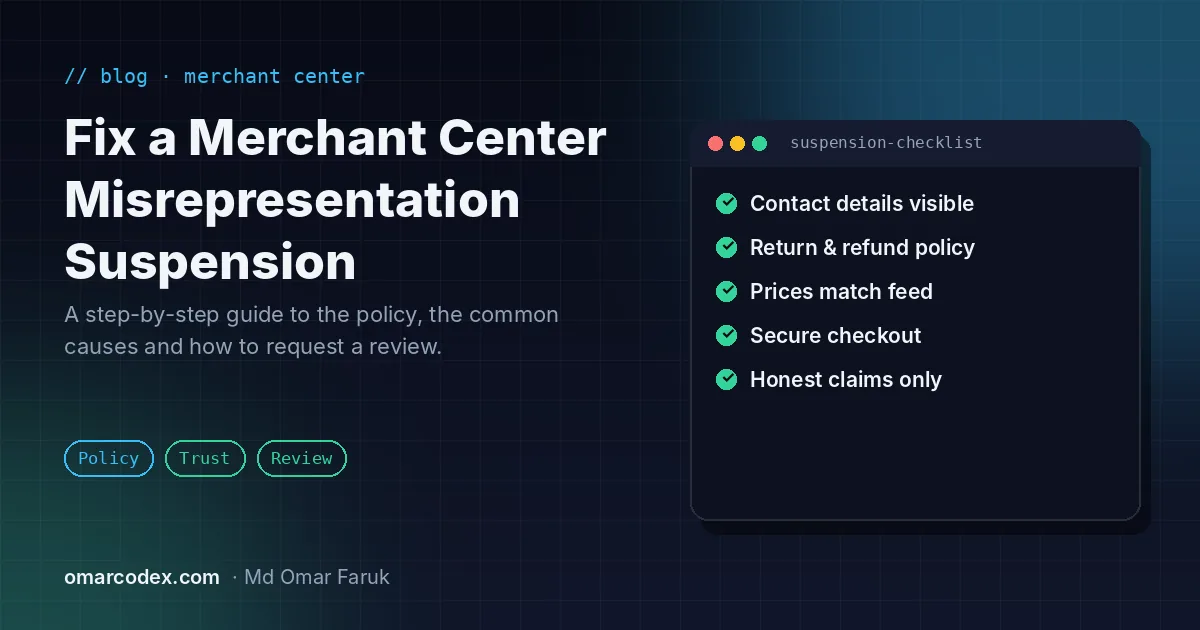
We updated this guide for 2027. We'll explain what the suspension means and what sets it off. Then we'll show you how to fix your store before you ask for a review. We'll also cover the Shopify-specific problems that most guides skip.
What Does Misrepresentation Mean in Google Merchant Center?
Misrepresentation is a trust problem. Google stops your account when it doesn't trust your store enough to show it to shoppers.
Google's Misrepresentation policy says two things in plain terms. You must give shoppers all the facts they need before they buy. And you must not make yourself or your products look better than they are.
The suspension usually hits your whole account. That means Google is judging your whole business, not one product. Deleting a few listings almost never clears it.
The 6 Types of Misrepresentation (and Why It Matters)
Google splits the policy into six parts. This matters because Google treats them very differently.
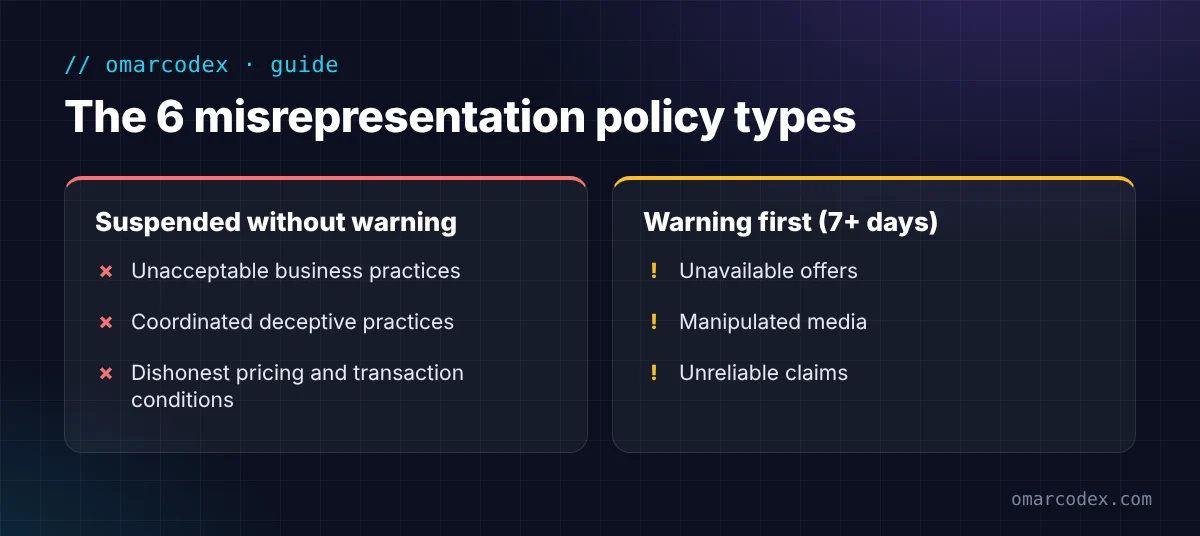
Suspended without warning (Google calls these "egregious"):
- Unacceptable business practices. Think of a fake business name or address. Or hiding where your company is based or where orders ship from. Refusing refunds your policy promises counts too.
- Coordinated deceptive practices. Hiding your identity while working with other sites on political or social content. Most stores never touch this.
- Dishonest pricing and transaction conditions. Examples: hiding fees, shipping costs, or recurring charges. Showing a fast delivery time in big text but a longer handling time in small print. Restocking fees you don't show before checkout.
Warning first (at least 7 days before any suspension):
- Unavailable offers. Listing products or deals you can't really deliver.
- Manipulated media. Edited photos or video meant to fool people.
- Unreliable claims. "Miracle" results, cure-all health claims, or other promises that can't come true.
So if you got suspended with no warning at all, look at the first three groups first. That is where most store problems live.
Common Triggers We See on Real Stores
Google doesn't list what it looks for. But the same problems come up again and again. Here are the ones we check first.
Business details that don't match
Your business name, address, phone, and email should be the same everywhere. That means your website footer, Contact page, policy pages, Merchant Center business info, Google Ads, and Google Business Profile.
One mismatch can be enough. A different phone number on the Privacy Policy. An old address from a theme demo. A Gmail address instead of an email on your own domain.
An address Google can't trust
Google wants a real place where your business works from. A government building, a virtual office, or a mass registered-agent address often fails. So does showing a US address while orders actually ship from another country.
Be honest about where you ship from. Google's policy names hiding the shipping origin as a violation.
Missing or weak policy pages
You need clear Shipping, Return and Refund, Privacy, and Terms pages. Each one must load, and each one needs a link in your footer.
Weak pages are a problem too. Say your return policy has no time window and no return address. It also skips who pays return shipping. To Google, that page looks unfinished.
Prices or stock that don't match
The price in your product feed must match the price on the page. So must stock status, shipping cost, and currency. If a sale app or currency app changes the price after the page loads, Google may see two different prices.
Fake urgency and fake trust signals
Every product "20% off" forever. A "Sale ends today" banner that shows every day. "Only a few left!" on every item. Five gold stars on products with zero reviews. Pop-ups saying someone in another country "just bought" something.
These are easy to add and easy for Google to spot. Remove them.
Claims you can't prove
Words like "Authorized dealer," "Official," "100% authentic," or "10,000 happy customers" need proof. If you can't show it, cut it.
Leftover template content
Lorem ipsum text. "Your content here." Demo product descriptions. Empty collections. Links that go to "#" or to another store's domain. We find at least one of these on most suspended stores we audit.
How to Fix a Google Merchant Center Misrepresentation Suspension: Step by Step
Here is the order we follow. Don't skip ahead to the review button. That is the most common and most costly mistake.
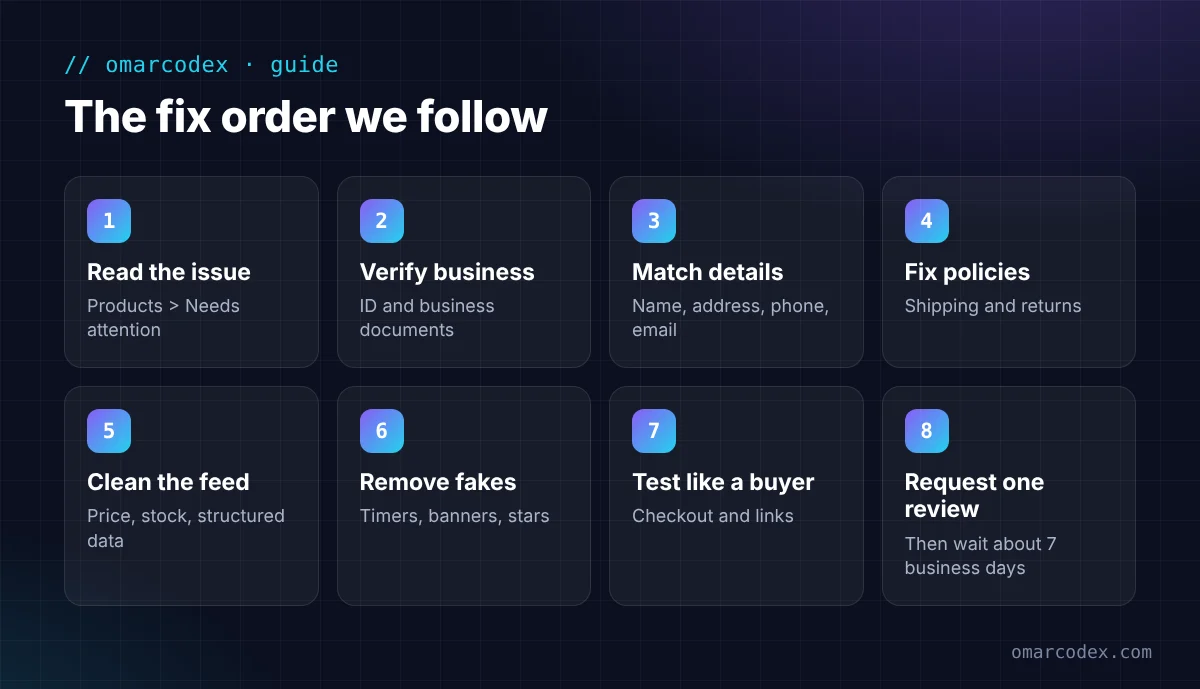
Step 1: Read the exact issue in Merchant Center
Go to Products > Needs attention and open your account issues. Note the issue name and any dates. Check your email too, since Google sends details there.
If you see a warning with a deadline, Google gives you 7 or 28 days to fix it. Work fast, but work carefully.
Step 2: Complete business verification first
For misrepresentation and store transparency issues, Google says you must finish merchant verification before you request a review. This can include a photo ID and business papers.
Look for the verification request in the Needs attention tab. If your store also runs Google Ads, check that the advertiser verification there is complete too.
Step 3: Make your business details match everywhere
Pick one legal name, one address, one phone number, and one domain email. Then update them in every place listed earlier. Make sure someone answers the phone during business hours.
Shopify note: check Settings > Store details and your theme footer. Store owners have found swapped fields here, like the city and ZIP code in the wrong order. Fixing a small error like that has been enough for some stores.
Step 4: Fix your policy pages
Each policy should fit your store, not a template. Your shipping policy should list processing days, delivery days, carriers, and costs. Your return policy should list the return window, conditions, return address, who pays return shipping, and how refunds are paid.
Then make sure the shipping and return settings in Merchant Center say the same thing.
If you'd rather have an expert check this for you, you can get a free quote for your GMC reinstatement. We'll tell you what we see before you spend a review attempt.
Step 5: Clean up product pages and your feed
Go through your top products one by one. Check that the title, price, sale price, stock status, images, and shipping match between the page and the feed.
Then check the code behind the page. Google's Rich Results Test shows the price in your product structured data. It should match the price shoppers see.
Remove products you can't ship or can't prove. Remove any that make health or "miracle" claims.
Step 6: Remove anything fake or misleading
Delete fake countdown timers, permanent sale banners, fake review stars, and "recent purchase" pop-ups. Only show a discount if the item really sold at the higher price before.
Step 7: Test your store like a customer
Place a test order. Check that checkout shows the full price, taxes, and shipping before payment. Check that policy links work at checkout. Click every link in your header and footer. Test on a phone.
Step 8: Request one well-prepared review
Now, and only now, ask for a review. Go to Products > Needs attention > View setup and policy issues. Choose "I fixed the issue" or "I disagree with the issue," then select Request review.
Google says reviews usually take about 7 business days, and can take up to 2 weeks. You'll get an email when it's done.
Why You Should Not Rush the Review
This part is easy to miss. Google's own review guide explains the limits:
- You may only get one chance to use "I disagree with the issue."
- If issues aren't fixed by the second review attempt, a one-week cooldown may start.
- The cooldown may get longer with each failed review.
- Google support can't shorten or skip a cooldown.
So every review attempt counts. Store owners on the Shopify Community describe each failed attempt leading to a longer wait. Fix everything first. Then ask once.
Shopify-Specific Notes
Shopify stores have a few extra traps:
- Google & YouTube app: this app syncs your products and shipping to Merchant Center. Check that its shipping settings match your shipping policy.
- Old markets or languages: is an old second market still live, like an EU version? Then Google may see a different address or language on some pages.
- Domain setup: make sure your primary domain is set and redirects work. Avoid links that send shoppers to your myshopify.com address.
- Template policies: Shopify's policy generator is a starting point. Edit it so it fits your real business.
- Apps that change prices: test sale, bundle, and currency apps. The price Google sees must match the price shoppers pay.
For a full setup walk-through, see our guide to Google Merchant Center for Shopify.
Common Mistakes That Keep Stores Suspended
- Requesting a review right after small edits. This burns a review attempt and can start a cooldown.
- Opening a new Merchant Center account. Many sellers report that a new account for the same domain or business gets flagged too. It can also look like an attempt to get around the suspension.
- Fixing only the products. Misrepresentation is usually about your whole business, not one listing.
- Leaving one old detail behind. One old phone number on one policy page can undo all your other work.
- Using a bulk appeal before checking every product. Google warns that a failed bulk appeal can limit future appeals for those products.
- Copying another store's policies. Copied text can carry another company's name, address, or rules into your store.
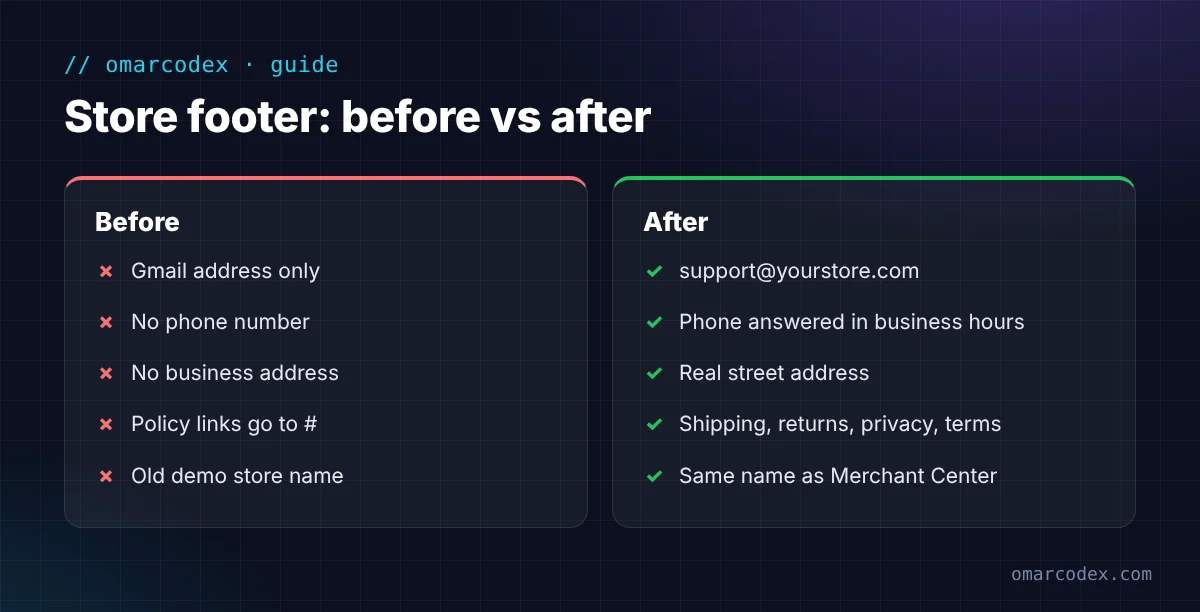
You can also run through our Google misrepresentation checklist for 2027 to catch anything you missed. For more guides like this, browse our Google Merchant Center articles.
How to Prevent Misrepresentation in the Future
Once you're approved, keep it that way:
- Check your site against Merchant Center every few months.
- Update your policies and Merchant Center settings at the same time.
- Don't add sale banners or claims you can't back up.
- Fill in your Business info in Merchant Center and keep it current.
- Link your real social profiles and set up a Google Business Profile if you have one.
- Collect real reviews. Google suggests options like Google Customer Reviews in its guide to building trust.
If your account is suspended for a different reason, read our guide to Google Merchant Center suspension types.
FAQ
How long does a Google Merchant Center misrepresentation review take?
Google says reviews usually take about 7 business days and can take up to 2 weeks. You'll get an email when you request the review and again when it's finished.
How many times can I request a review?
Google doesn't give a fixed number. It does say you may get only one chance to disagree with an issue. After a second failed fix attempt, a one-week cooldown may start, and it can grow with each failed review.
Can I open a new Merchant Center account instead?
We don't recommend it. Sellers often report the new account gets suspended too. Fixing the original account is the safer path.
Can I still run Google Ads while Merchant Center is suspended?
Your Shopping ads stop, because they need approved products. Search ads that don't use your feed may still run. Check your Google Ads account for its own policy issues, too.
Why won't Google tell me exactly what's wrong?
Google says it reviews many signals from across the web, and it doesn't share the specific one. That's why a full store audit works better than guessing.
Get Your Store Back on Google Shopping
A Google Merchant Center misrepresentation suspension feels personal, but it's usually fixable. Match your business details everywhere, make your policies specific, remove anything fake, and finish verification. Then request one careful review.
If you want a second pair of eyes before you use that review, we can help. Our team checks your store, your feed, and your Merchant Center settings, then tells you what to fix. Get a free quote for your GMC reinstatement and see what we'd do. You can also learn more about our Google Merchant Center suspension fix service.
Written by Omar Faruk
Full-Stack Developer — WordPress, Laravel & Shopify
I'm a full-stack web developer who has shipped news portals, company sites, multi-user web apps and Shopify stores for clients around the world. I care about clean code, fast pages and websites that actually bring in sales.
Need help with this on your site?
I can set it up for you — quick turnaround, fixed price.


