
Google Merchant Center for Shopify: 2027 Setup Guide

// tl;dr
Fix your store before you connect: full contact details, clear shipping and return pages, no placeholders, honest prices. Then connect through the Google & YouTube app, check shipping profiles, and fix product errors after the first sync.
Getting your Shopify products on Google is one of the best free sales channels you have. But a rushed setup can end with a suspended account before your first sale.
Setting up Google Merchant Center for Shopify takes about an hour. Fixing a suspension can take weeks. So it pays to do it right the first time.
This 2027 guide walks you through the Google & YouTube app step by step. It also covers what to fix in your store before you connect, so Google trusts you from day one.
Why Use Google Merchant Center for Shopify?
Google Merchant Center is where Google keeps your product data. It powers free product listings and Shopping ads. Shopify connects to it through the free Google & YouTube app.
Once connected, your products sync on their own. Shopify says the first sync can take up to 24 hours. After that, changes usually sync within a few hours.
Before You Connect: Fix Your Store First
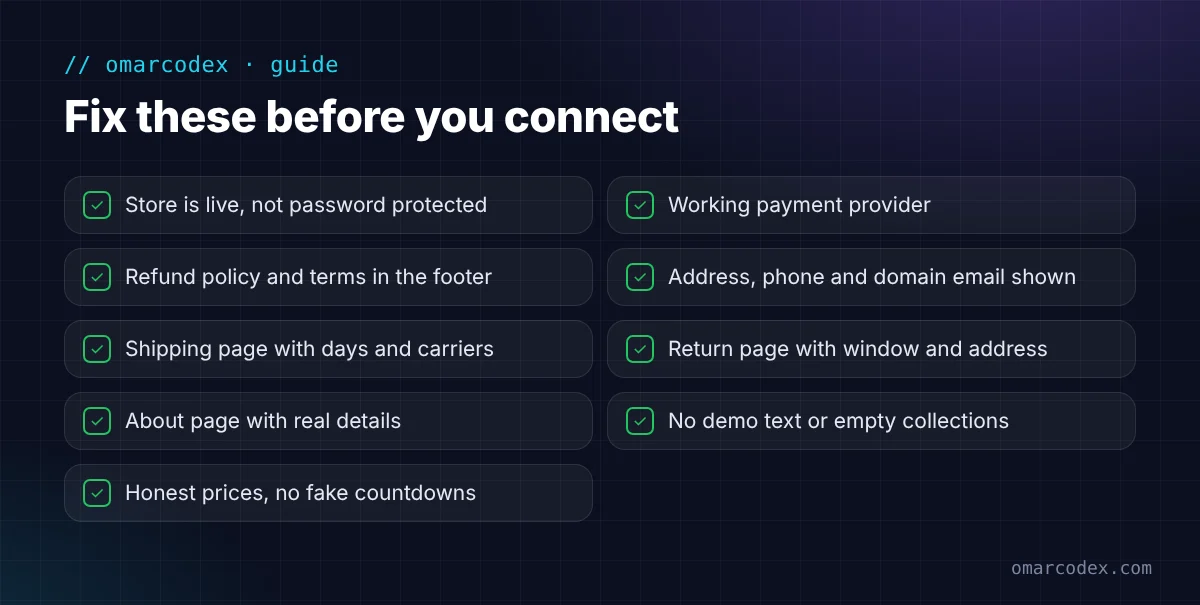
This is the step most guides skip. Google checks your whole store, not just your products. Shopify's Google & YouTube requirements list the basics. We add a few more that help you avoid a misrepresentation flag.
Shopify's own requirements
- Your store is live, not password protected.
- You have a working payment provider.
- Your Refund Policy and Terms of Service exist and are linked in your footer.
- Your contact details are visible on the store.
- You ship to a supported country, and your currency matches it.
- Shipping is set up for the countries you sell to.
What we add to keep you safe
- Full contact details: a real address, a phone number someone answers, and an email on your own domain. Shopify only asks for one way to contact you. Google trusts stores that show all of them.
- Clear shipping page: processing time, delivery time, carriers, and costs.
- Clear return page: the time window, conditions, return address, and who pays return shipping.
- An About page that says who you are and what you sell.
- No placeholders: no lorem ipsum, demo text, empty collections, or links that go nowhere.
- Honest prices: no fake "compare at" prices, permanent sales, or fake countdowns.
Shopify warns about one thing in particular. During setup, you confirm that your store meets the requirements. Shopify can't check all of them for you. If you confirm something that isn't true, Google can suspend your account.
How to Connect Shopify to Google Merchant Center: Step by Step
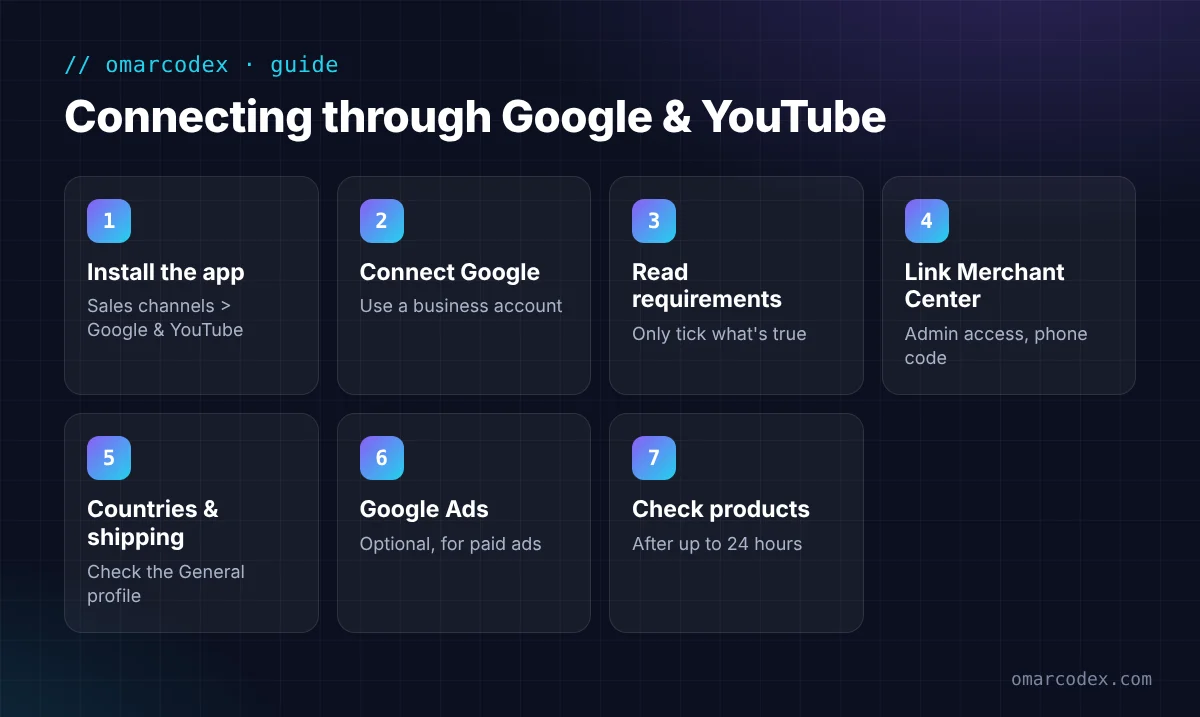
These steps follow Shopify's setup guide for the Google & YouTube channel.
Step 1: Install the Google & YouTube app
Find the Google & YouTube app in the Shopify App Store and add it. Then go to Sales channels > Google & YouTube in your admin.
Step 2: Connect your Google account
Click Connect Google Account. Use a Google account you'll keep for the business, not a staff member's personal one.
Step 3: Review the requirements checklist
The app shows a list of requirements. Read each one. Only tick a box if your store really meets it.
Step 4: Connect or create a Merchant Center account
Pick an existing Merchant Center account, or click Create new. Your Google login must be an admin on that account, not a standard user.
Then verify your phone number. Google sends a 6-digit code by text.
Step 5: Set countries, languages, and shipping
Choose where you want to sell. Then check your shipping settings. Shopify syncs your General shipping profile automatically. Custom shipping profiles can sync wrong and cause errors, so check them.
Step 6: Connect Google Ads (optional)
If you want to run Shopping or Performance Max ads, connect Google Ads from the app. Free listings don't need ads.
Step 7: Check your products after the first sync
Wait up to 24 hours. Then open the app and check product statuses: Approved, Limited, Under review, or Not approved. Fix any errors before you add more products.
Product Data That Keeps You Approved
Google needs clean, accurate product data. In Shopify, check these for every product:
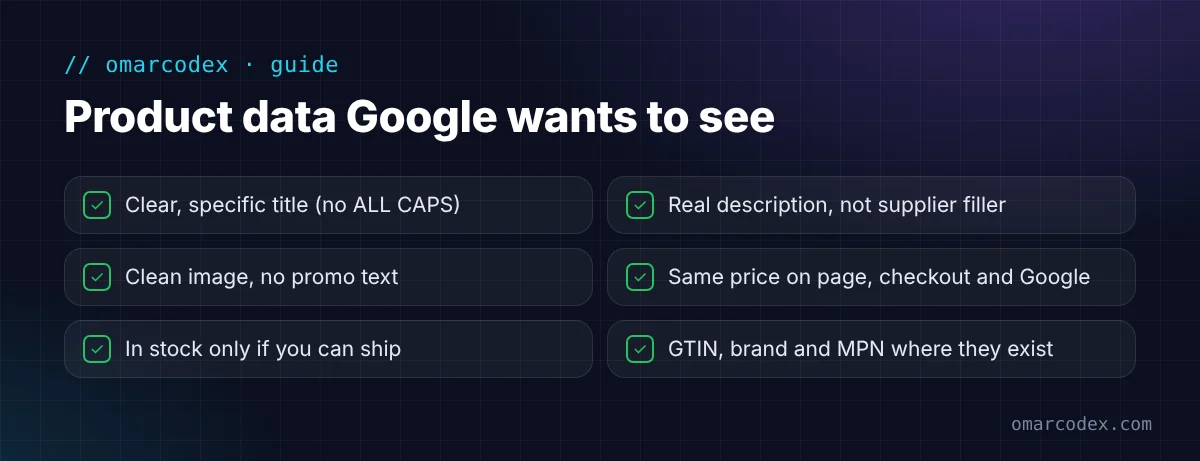
- Title: clear and specific. No all-caps titles.
- Description: real details about the product. No copied supplier text if you can help it.
- Images: a clear photo of the product. No text or promo badges on top.
- Price: the same on your product page, at checkout, and in Google.
- Stock: only show "in stock" if you can really ship it.
- GTIN, MPN, and brand: add the barcode (GTIN) for branded products. Shopify warns that wrong or missing identifiers can stop products from showing, and your account could be suspended.
If you use apps that change prices, like currency or sale apps, test them. Google should see the same price your shoppers pay.
Need a second opinion before you connect? You can get a free quote for your GMC setup or reinstatement. We'll check your store against Google's rules first.
Common Shopify Setup Errors
- "Not an admin" error. Your Google login needs admin access in Merchant Center. Shopify says to wait about 10 minutes after you change access.
- Phone verification fails. Shopify allows 5 tries every 4 hours.
- Domain already claimed. Another Merchant Center account may own your domain. Moving the claim can't be undone, and the old account's feeds get disapproved.
- Wrong domain. Use your primary domain, not a subdomain or your myshopify.com address.
- One store per account. One Merchant Center account connects to only one Shopify store.
Common Mistakes That Lead to Suspension
- Connecting a half-built store. Google sees your store as it is the day you connect. Finish it first.
- Ticking requirement boxes you haven't met. Shopify says this alone can lead to suspension.
- Using a theme demo's details. Old demo addresses, phone numbers, or emails left in the footer or policies.
- Showing a US address while shipping from overseas. Be honest about where orders ship from.
- Copying another store's policies. You may copy their business name or rules by mistake.
- Running many stores with the same details. Google can link stores that share phone numbers, products, or business info.
What If Your Account Gets Suspended?
If Merchant Center is suspended, your products stop showing. Shopify's support can't lift a Google suspension. You need to fix the cause and request a review in Merchant Center.
Start with our guide to fixing a Google Merchant Center misrepresentation suspension. If your status says "limited" instead, read our guide to Google Merchant status limited. And to set up tracking for your ads, see our Google Ads conversion tracking guide for Shopify.
FAQ
Is Google Merchant Center free for Shopify?
Yes. The Google & YouTube app and Merchant Center are both free. You only pay if you run ads in Google Ads.
How long does it take for Shopify products to show on Google?
Shopify says the first sync can take up to 24 hours. Google then reviews your products and store, so it can take longer before they appear.
Do I need Google Ads to list products on Google?
No. Free listings don't need ads. You only need Google Ads for paid Shopping or Performance Max campaigns.
Can I connect two Shopify stores to one Merchant Center?
No. Shopify says one Merchant Center account connects to only one Shopify store.
Why was my Shopify store suspended for misrepresentation?
Usually because Google didn't trust the store. Common causes are missing contact details, weak policies, mismatched prices, or fake sale claims. Fix those first, then request a review.
Start on Google the Right Way
A clean setup saves you weeks of stress later. Fix your store first, connect through the Google & YouTube app, and check your product data after the first sync.
Want us to set it up or check it for you? We help Shopify stores get approved on Google Merchant Center and stay that way. Get a free quote for your GMC setup or reinstatement. You can also see our Google Merchant Center service or our Shopify store and tracking service.
Written by Omar Faruk
Full-Stack Developer — WordPress, Laravel & Shopify
I'm a full-stack web developer who has shipped news portals, company sites, multi-user web apps and Shopify stores for clients around the world. I care about clean code, fast pages and websites that actually bring in sales.
Need help with this on your site?
I can set it up for you — quick turnaround, fixed price.


