Google Ads Conversion Tracking for Shopify: Setup & Fixes (2026)

Google Ads conversion tracking is what lets Smart Bidding spend your money on searches that turn into sales. On Shopify, I often find stores with two purchase actions counting every sale, or none recording at all. Both problems quietly wreck bidding. Here is the setup I use, plus how to test and fix it.
By Omar Faruk, Shopify tracking developer · Last updated: October 31, 2026
Quick answer: For Google Ads conversion tracking on Shopify, install the Google & YouTube app, connect your Google Ads account and confirm the suggested purchase, add to cart and checkout started conversions. Turn on enhanced conversions, keep purchase as the only Primary action, and verify it with Tag Assistant and a test order.
Table of contents
- What is Google Ads conversion tracking?
- Which tracking method should a Shopify store use?
- How to set up Google Ads conversion tracking on Shopify
- Primary vs Secondary conversion actions
- How to turn on enhanced conversions
- Consent Mode v2 and privacy
- How to verify tracking is working
- Troubleshooting Google Ads tracking on Shopify
- Multiple accounts, MCCs and advanced setups
What is Google Ads conversion tracking?
Google Ads conversion tracking records valuable actions people take after clicking your ads or free listings. For a Shopify store, the main action is a purchase with its order value. Google Ads uses these conversions to report results and to train Smart Bidding strategies like Maximize Conversion Value and Target ROAS.
Each tracked action in Google Ads is a conversion action. Every action is either Primary, which bidding uses, or Secondary, which is reported only. Getting that split right matters as much as the tag itself.
Which tracking method should a Shopify store use?
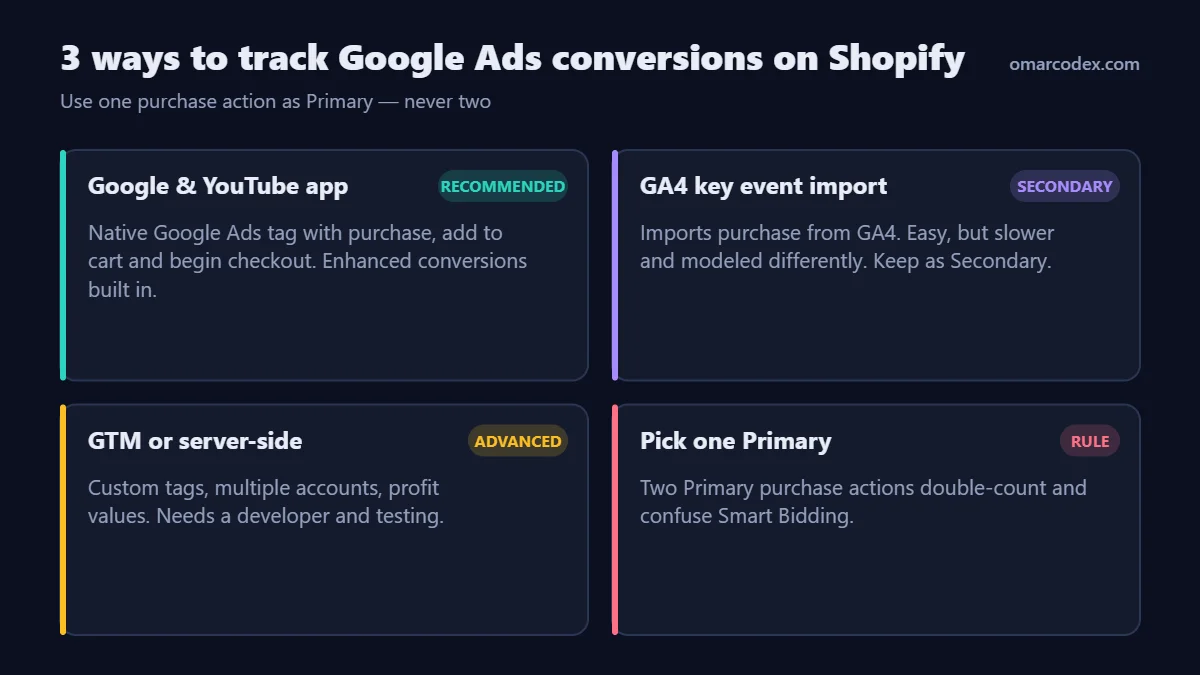
| Method | Speed of data | Enhanced conversions | Effort | Use it as |
|---|---|---|---|---|
| Google & YouTube app tag | Fast | Built in | 20–30 min | Primary purchase |
| GA4 key event import | Slower | Via GA4 user data settings | 10 min | Secondary, for reporting |
| GTM custom pixel | Fast | Manual setup | 2–6 hours | Primary, if app is removed |
| Server-side GTM | Fast | Yes, with richer data | 1–3 days | Primary for high spend |
| Third-party pixel app | Fast | Usually | 30 min | Primary for MCC or multi-account needs |
For most stores, the native app is the right choice. It is Google's recommended method, and it keeps working through Shopify checkout changes. If you already track GA4 well, see my Shopify GA4 conversion tracking guide. Just do not make GA4 purchases Primary next to the Ads tag.
How to set up Google Ads conversion tracking on Shopify
You need Shopify admin access and admin access to your Google Ads account. Viewer or standard access often blocks linking.
Step 1: Install the Google & YouTube app
- In Shopify admin, search for Google & YouTube and install it from the Shopify App Store.
- Review the permissions and click Install.
- Click Connect Google account and pick the Google account that owns your Google Ads account.
Step 2: Connect Google Ads
- Find the Google Ads conversion measurement section and click Get started.
- Select your Google Ads account and click Connect.
- If you manage several accounts through an MCC, connect the main one here. Add others later with conversion IDs and labels.
Step 3: Confirm your conversion events
Under Measure conversions, the app maps Shopify events to Google Ads actions. Purchase, add to cart and checkout started are the suggested defaults. Click Manage if you want to reuse existing conversion actions in your account. Otherwise, click Confirm.
Step 4: Confirm enhanced conversions and Google tags
- Confirm the enhanced conversions setting when prompted.
- Check the Google tags listed for each connected service and click Confirm.
- Click Complete setup. If you stop early, you cannot manage settings later.
Step 5: Remove legacy tags
- Search
theme.liquidforAW-,gtag(andGTM-. - Check Settings → Customer events for custom pixels sending Google Ads conversions.
- Remove any old purchase code left from the legacy order status page.
Primary vs Secondary conversion actions
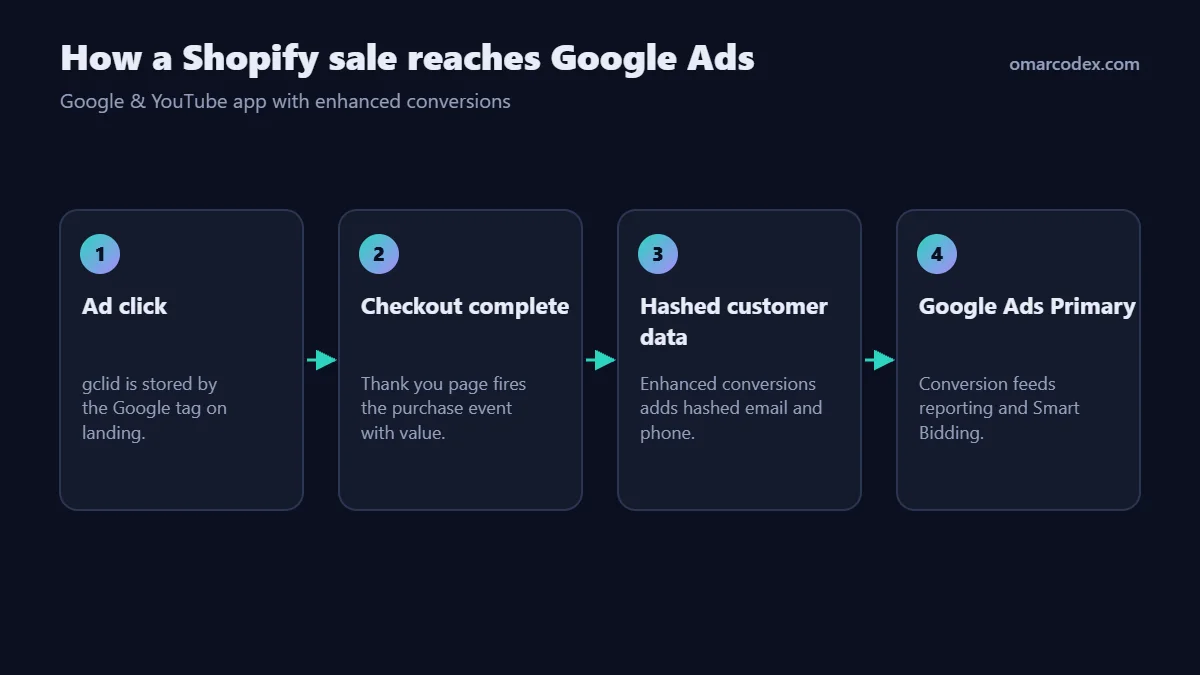
A Primary action counts in the Conversions column and is used by bidding. A Secondary action is reported in All conversions only. This is the most common place I find broken accounts.
- In Google Ads, go to Goals → Conversions → Summary.
- Find the Purchase goal and list every action inside it.
- Keep the Google & YouTube app purchase action as Primary.
- Set GA4 purchase imports, old website tags and app duplicates to Secondary, or remove them.
- Keep add to cart and begin checkout as Secondary for sales campaigns.
- Check each campaign uses account-default goals, or a custom goal containing the right purchase action.
| Conversion action | Recommended setting | Why |
|---|---|---|
| Purchase (Google & YouTube app) | Primary | Fast, accurate, with enhanced conversions |
| Purchase (GA4 import) | Secondary | Prevents double counting |
| Add to cart | Secondary | Too early to bid on for sales |
| Begin checkout | Secondary | Useful signal, not revenue |
How to turn on enhanced conversions
Enhanced conversions add hashed first-party data, such as the customer's email, to each conversion. Google matches it to signed-in users when cookies are missing. That usually recovers conversions that browsers would otherwise hide.
- In the Google & YouTube app, open Settings.
- Under Google Ads settings, find Enhanced conversions and click Turn on.
- Review and accept the customer data terms.
- After a few days, check the conversion action's diagnostics in Google Ads for matched data.
Consent Mode v2 and privacy
Google needs consent signals to use data for ads personalization in regions that require it, such as the EEA and UK. In the US, several states give shoppers opt-out rights for targeted ads. On Shopify:
- Turn on Shopify's customer privacy banner, or use a consent app built on Shopify's Customer Privacy API.
- The Google & YouTube app passes Shopify's consent state to Google tags.
- Expect some modeled conversions in Google Ads reports. That is normal under Consent Mode.
How to verify tracking is working
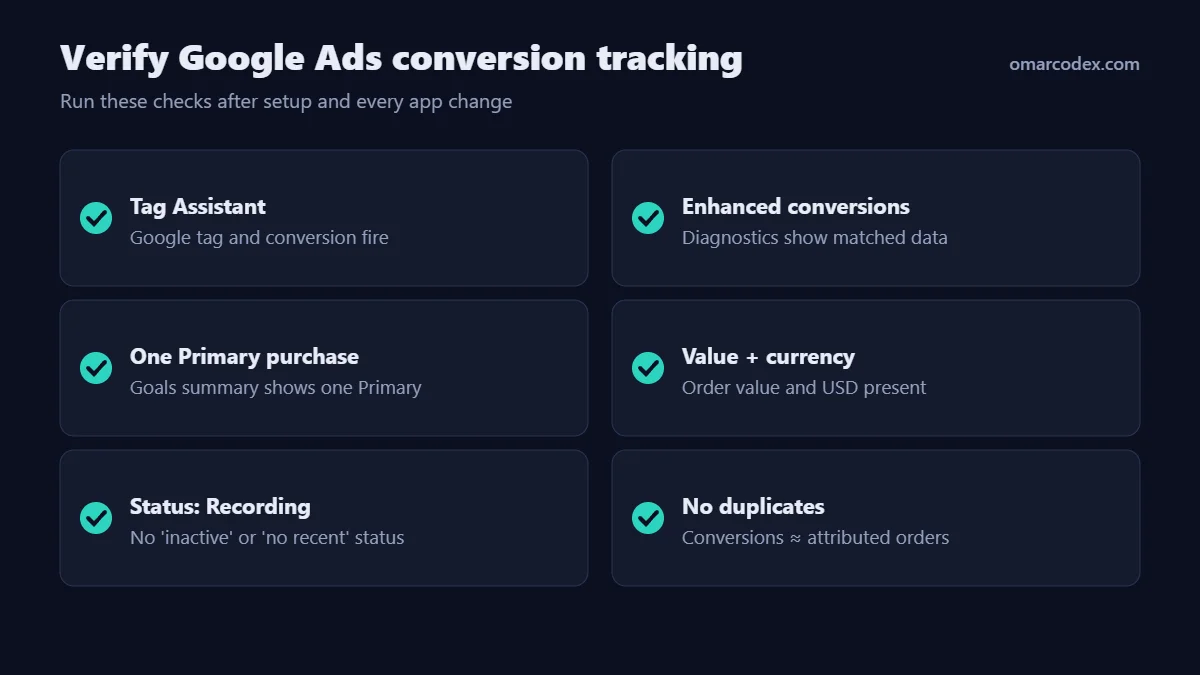
- Tag Assistant: open Google Tag Assistant, connect your store URL and browse to a product. The Google tag should load with your
AW-ID. - Test order: place a test order with a 100% discount code. Tag Assistant should show the purchase conversion once.
- Goals summary: confirm one Primary purchase action in Google Ads.
- Status: within a day, the action status should move to Recording conversions. "No recent conversions" or "Inactive" means something is wrong.
- Enhanced conversions: check diagnostics for the action after a few days.
- Sanity check: compare Google Ads conversions with orders from Google Ads traffic in GA4 or Shopify. They will not match exactly, but they should be in the same range.
Troubleshooting Google Ads tracking on Shopify
| Problem | Likely cause | Fix |
|---|---|---|
| Conversions doubled | Two Primary purchase actions | Set GA4 import or old tag to Secondary |
| Conversions doubled after app setup | Legacy gtag still in theme | Remove old AW- code and custom pixels |
| Status "No recent conversions" | App setup not finished or wrong account linked | Finish setup and relink the correct account |
| Cannot link Google Ads account | No admin access | Get admin access, or add a conversion ID/label manually |
| Conversion value is $0 | Action set to "Don't use a value" or custom tag missing value | Use the order value in action settings |
| Conversions far below orders | Consent declines, attribution, ad blockers | Turn on enhanced conversions and Consent Mode |
| Bidding swings after setup | Primary action changed mid-campaign | Change goals once, then give bidding 1–2 weeks |
Multiple accounts, MCCs and advanced setups
The Google & YouTube app links one Google Ads account directly. For a second account, an agency MCC account or Floodlight, the app lets you add a custom conversion ID and label for each Shopify event. You can also add extra Google tags by hand in the app's Google tags section.
Move beyond the app when you need profit-based values, offline conversion imports, or one server feed for several platforms. My guide to Shopify server-side tracking covers when that is worth the cost. If you also run Shopping or Performance Max, keep your feed healthy. My post on fixing Merchant Center misrepresentation suspensions helps there.
Related guides in this series
- Shopify conversion tracking overview for GA4, Meta and TikTok
- Shopify Meta Conversions API setup
- TikTok conversion tracking on Shopify
Official references: Google Ads Help: Set up conversion tracking with the Google & YouTube app on Shopify and Shopify Help Center: Setting up Google Analytics 4.
Conclusion
Strong Google Ads conversion tracking on Shopify rests on three rules. Use the Google & YouTube app, keep one Primary purchase action, and turn on enhanced conversions. Then verify with a test order. Smart Bidding can only be as good as the conversions you feed it.
Want me to audit your Google Ads conversion setup? Read about my Shopify tracking service or contact me for a tracking audit.
About the author: Omar Faruk is a web developer who builds and fixes Shopify, WordPress and Laravel sites. He specializes in GA4, Meta, TikTok and Google Ads conversion tracking and Merchant Center fixes.
Written by Omar Faruk
Full-Stack Developer — WordPress, Laravel & Shopify
I'm a full-stack web developer who has shipped news portals, company sites, multi-user web apps and Shopify stores for clients around the world. I care about clean code, fast pages and websites that actually bring in sales.
Need help with this on your site?
I can set it up for you — quick turnaround, fixed price.


