
Shopify GA4 Conversion Tracking: Complete Setup Guide (2026)

Shopify GA4 conversion tracking breaks quietly. Revenue shows up in Shopify, but GA4 shows fewer purchases, duplicate orders, or no ecommerce data at all. I set up and audit tracking for Shopify stores every week. This guide is the exact process I use to get GA4 counting purchases correctly and to prove that it works.
By Omar Faruk, Shopify tracking developer · Last updated: October 31, 2026
Quick answer: To set up Shopify GA4 conversion tracking, create a GA4 property and web data stream, install Shopify's Google & YouTube app, and connect that GA4 property. Shopify then sends ecommerce events, including purchase, automatically. Confirm purchase is marked as a key event, then verify with a test order in GA4 Realtime.
Table of contents
- What is Shopify GA4 conversion tracking?
- Which setup method should you use?
- How to set up Shopify GA4 conversion tracking (step by step)
- How do you mark purchases as key events in GA4?
- Consent Mode v2 and US privacy laws
- How to verify tracking is working
- Troubleshooting: GA4 not tracking Shopify purchases
- Why GA4 and Shopify numbers never match exactly
What is Shopify GA4 conversion tracking?
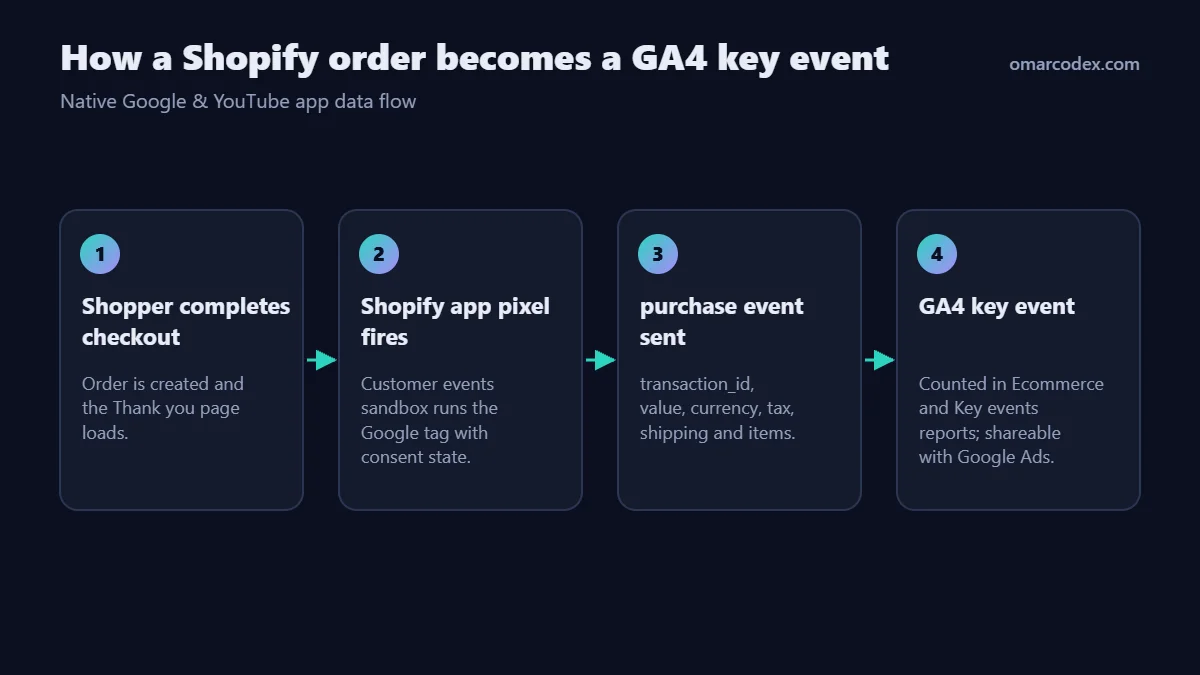
Shopify GA4 conversion tracking is the process of sending store events, mainly completed orders, from Shopify to Google Analytics 4. Each order becomes a purchase event with revenue, currency, tax, shipping and product data. GA4 can then attribute sales to channels, campaigns and landing pages.
Two terms cause most of the confusion:
- Events are every action GA4 records, such as
view_itemoradd_to_cart. - Key events are the events you flag as important. Google renamed "conversions" to "key events" in GA4 in 2024. In Google Ads, the word "conversion" is still used.
So when people say "GA4 conversion tracking," they usually mean two things. First, the purchase event fires with the right value. Second, it is marked as a key event so it shows in conversion reports.
Which ecommerce events does Shopify send to GA4?
When you connect GA4 through the Google & YouTube app, Shopify sends the core funnel events for you. You do not need theme code for these.
| Event | When it fires | Why it matters |
|---|---|---|
page_view |
Every page load | Traffic and landing page reports |
search |
Storefront search | Shows what shoppers look for |
view_item |
Product page view | Product interest and audiences |
add_to_cart |
Item added to cart | Funnel drop-off analysis |
begin_checkout |
Checkout started | Checkout abandonment |
add_payment_info |
Payment info submitted | Late-funnel friction |
purchase |
Order confirmed | Revenue and conversion reporting |
Need more events, like view_item_list or add_shipping_info? You will need a custom pixel or Google Tag Manager. I cover that in the methods section below.
Which setup method should you use?
There are four realistic ways to send Shopify data to GA4 in 2026. Pick one main method. Running two at once is the number one cause of duplicate purchases.
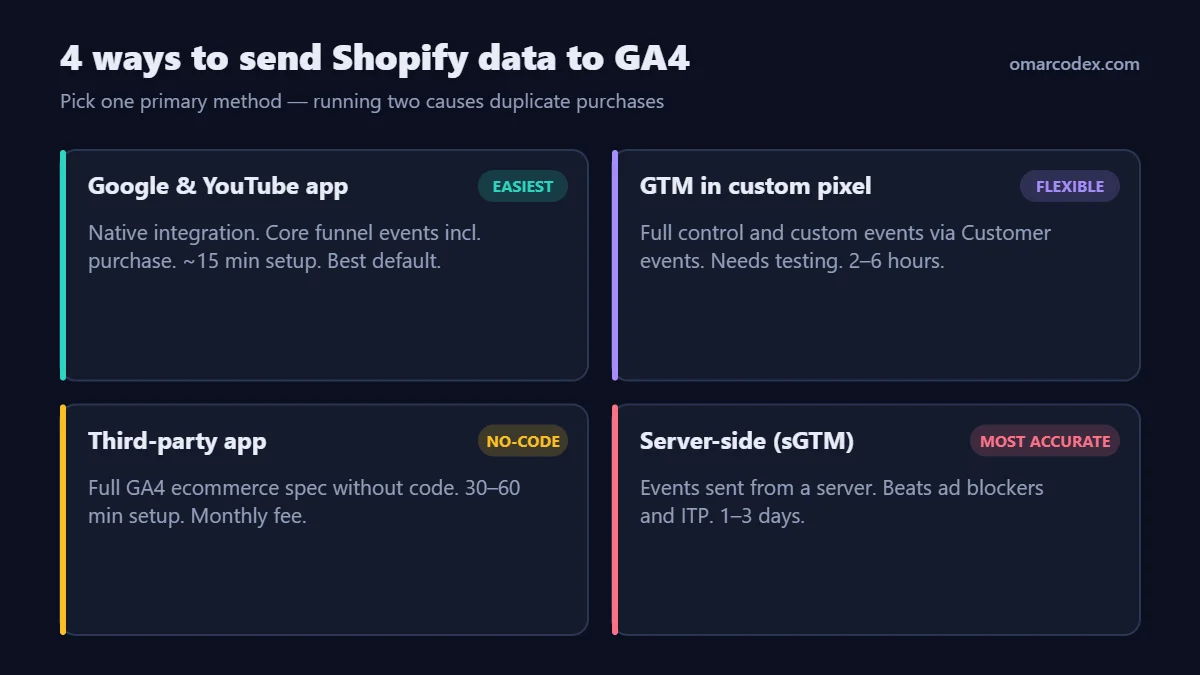
| Method | Setup effort | Event coverage | Accuracy | Best for |
|---|---|---|---|---|
| Google & YouTube app (native) | 15 minutes | Core funnel events | Good | Most small and mid-size stores |
| GTM in a Shopify custom pixel | 2–6 hours | Anything you build | Good, if tested well | Stores that need custom events or many tags |
| Third-party tracking app | 30–60 minutes | Full GA4 ecommerce spec | Good to very good | Merchants who want more without code |
| Server-side (sGTM or app) | 1–3 days | Full, plus server events | Best | High ad spend, heavy ad-blocker loss |
My default advice: start with the native app. Move to a custom pixel or Shopify server-side tracking only when you have a clear reason. Common reasons are missing events, high ad-blocker loss, or many platforms to feed.
How to set up Shopify GA4 conversion tracking (step by step)
This is the native setup. It covers most stores and takes about 15 minutes. You need admin access to Shopify and Editor access (or higher) to GA4.
Step 1: Create a GA4 property and web data stream
- Open Google Analytics and go to Admin → Create → Property.
- Name it after your store. Set the reporting time zone and currency to match Shopify. Mismatched time zones make daily totals disagree.
- Choose your industry and business size, then pick the ecommerce-related objectives.
- Create a Web data stream with your primary domain, for example
https://yourstore.com. - Leave Enhanced measurement on. Copy the Measurement ID (it starts with
G-).
Step 2: Install the Google & YouTube app in Shopify
- In Shopify admin, open the Shopify App Store and install Google & YouTube.
- Connect the Google account that has access to your GA4 property.
- Make sure your online store is not password protected. Shopify notes that Analytics cannot track events while the store is in private mode.
Step 3: Connect your GA4 property
- In the app, open Settings and find the Google Analytics section.
- Select your GA4 property from the list and click Connect.
- Shopify now adds the Google tag through its own app pixel. It loads on storefront and checkout pages, including the Thank you page.
Step 4: Remove old or duplicate tags
This step gets skipped the most, and it causes the most damage. Check each place a GA tag might still live:
- Theme code: search
theme.liquidforgtag(,G-andGTM-. - Settings → Customer events: look for custom pixels that also send GA4 events.
- Apps: other analytics or "all-in-one pixel" apps may also send GA4 data.
- Legacy checkout scripts: old "Additional scripts" on the Order status page are deprecated now that Thank you pages run on checkout extensibility. Remove any leftover purchase code there.
Step 5: Link Google Ads (optional but recommended)
In GA4, go to Admin → Product links → Google Ads links and link your account. This lets you share audiences and import key events. For bidding, I still recommend a direct Google Ads purchase conversion. See my guide to Google Ads conversion tracking on Shopify.
How do you mark purchases as key events in GA4?
GA4 normally treats purchase as a key event by default. Still, check it, because a renamed or custom purchase event will not be flagged.
- In GA4, go to Admin → Data display → Events.
- Find
purchase. It appears after the first event is received, which can take up to 24 hours. - Make sure the Mark as key event star or toggle is on.
- Optional: mark
begin_checkoutas a key event for analysis. Do not import it into Google Ads as a primary bidding goal.
Consent Mode v2 and US privacy laws
Consent affects how many purchases GA4 can see. US states such as California, Colorado, Virginia and Texas now have privacy laws that cover opt-out of sale or targeted ads. If you sell into the EEA or UK, Google requires Consent Mode v2 for ad personalization.
- Turn on Shopify's Customer privacy settings and cookie banner, or use a consent app that supports Shopify's Customer Privacy API.
- The Google & YouTube app reads Shopify's consent state and passes it to Google tags.
- Expect some modeled or missing data from visitors who decline. This is normal, not a broken setup.
How to verify tracking is working
Never assume tracking works because the app says "connected." I run this five-part check on every store.
1. Place a real test order
Use Shopify Payments test mode or a 100% discount code on a cheap product. Use a browser with no ad blocker, and accept cookies in the banner.
2. Watch GA4 Realtime
Open Reports → Realtime. Within a minute or two you should see page_view, add_to_cart, begin_checkout and purchase in the event card.
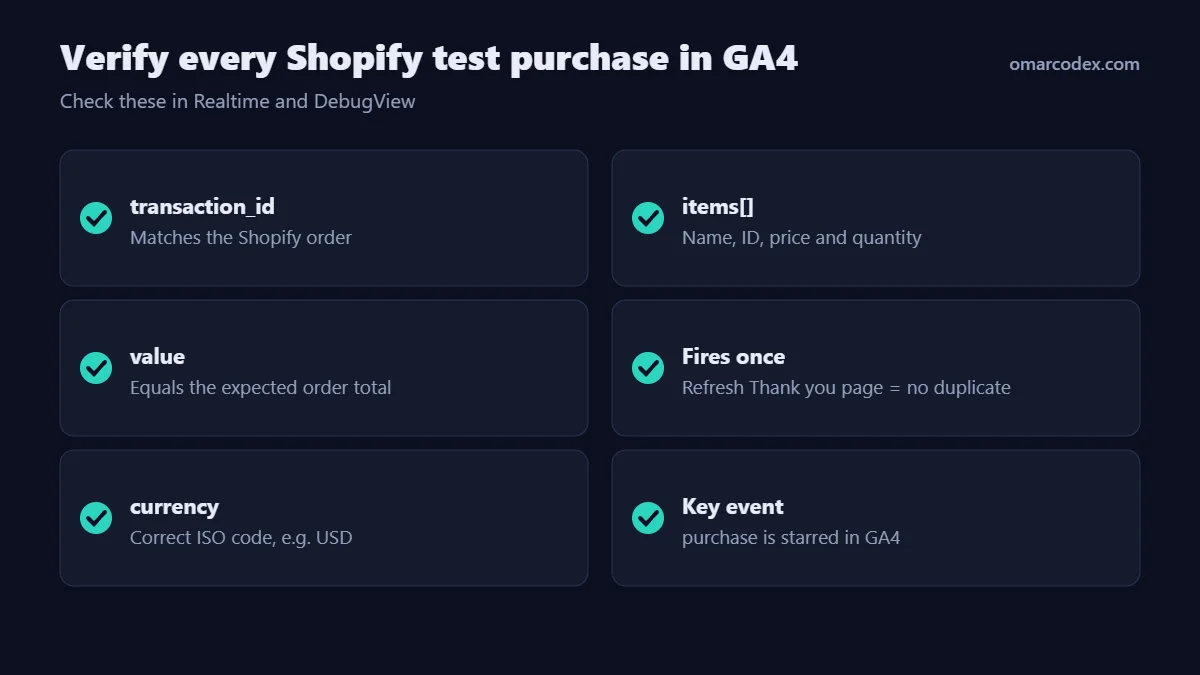
3. Check DebugView for parameters
Open Admin → DebugView with debug mode on, for example via the Google Tag Assistant. Click the purchase event and confirm these parameters:
transaction_idmatches the Shopify order number or IDvaluematches the order total you expectcurrencyis correct, such asUSDitemscontains each product with name, ID, price and quantity
4. Confirm it fires once
Refresh the Thank you page. GA4 should not log a second purchase with the same transaction_id. If it does, you still have a duplicate tag.
5. Compare after 48 hours
After two days, compare GA4 Ecommerce purchases to Shopify orders for the same dates. A gap of 5–15% is normal. A gap above 25% needs troubleshooting.
Troubleshooting: GA4 not tracking Shopify purchases
| Symptom | Likely cause | Fix |
|---|---|---|
| No purchases at all | Store in password mode, or wrong property connected | Remove the password and reconnect the right GA4 property |
| Purchases doubled | App plus theme gtag, or app plus custom pixel | Keep one method and delete the other tags |
| Revenue is $0 or wrong | Custom event missing value or currency |
Send both parameters on every purchase |
| Revenue in wrong currency | GA4 property currency differs from store | Align currency, and send currency per event |
| All sales show as "Direct" or referral from a payment site | Payment gateway or PayPal domain breaking sessions | Add payment domains to List unwanted referrals |
| Purchases appear a day late | Time zone mismatch | Match GA4 time zone to Shopify |
| Big gap only on iPhone/Safari | ITP, ad blockers, consent declines | Consider server-side tracking |
If purchases still look wrong, check whether an upsell or post-purchase app creates extra orders. Those orders may not send their own GA4 event.
Why GA4 and Shopify numbers never match exactly
Shopify counts every order in its database. GA4 only counts orders where its tag loaded in the shopper's browser. These are the usual gaps:
- Ad blockers and privacy browsers block the Google tag.
- Declined consent limits or removes the event.
- Non-web orders such as POS, draft orders, subscriptions and marketplace sales never touch the storefront.
- Refunds and edits update in Shopify but not in GA4 unless you send
refundevents. - Time zone and attribution differences shift orders between days and channels.
Use Shopify for revenue truth. Use GA4 for behavior, channels and funnel analysis.
Next steps: build the rest of your tracking stack
GA4 is one part of your measurement. Most stores also need ad platform tracking. Use these guides from the same series:
- The overview: Shopify conversion tracking for GA4, Meta and TikTok
- Shopify Meta Conversions API setup for Facebook and Instagram ads
- TikTok conversion tracking on Shopify
Official references: Shopify Help Center: Setting up Google Analytics 4 and Google Analytics Help: Automatically collected events.
Conclusion
Good Shopify GA4 conversion tracking comes down to three habits. Use one tracking method. Mark purchase as a key event. Check every setup with a real test order. Do that, and GA4 becomes a reliable view of which channels drive revenue.
Want someone to set it up or audit it for you? I do this for Shopify stores through my Shopify store and tracking service. Contact me for a tracking audit, and I'll show you exactly where your conversions are leaking.
About the author: Omar Faruk is a web developer who builds and fixes Shopify, WordPress and Laravel sites. He specializes in GA4, Meta, TikTok and Google Ads conversion tracking and Merchant Center fixes.
Written by Omar Faruk
Full-Stack Developer — WordPress, Laravel & Shopify
I'm a full-stack web developer who has shipped news portals, company sites, multi-user web apps and Shopify stores for clients around the world. I care about clean code, fast pages and websites that actually bring in sales.
Need help with this on your site?
I can set it up for you — quick turnaround, fixed price.


