
Google Merchant Center Suspension: Causes, Types and How to Get Reinstated in 2027

// tl;dr
Check whether it's an account or product issue, read the linked policy, complete Google's ID check, fix your whole store (business details, policies, data consistency), then request one careful review. Failed reviews can trigger cooldowns.
One morning your products vanish from Google. Free listings, Shopping ads, all of it. Merchant Center shows a red banner, and your traffic drops overnight.
A Google Merchant Center suspension is stressful, but it isn't random. Google sorts its rules into a few clear groups. Once you know which one you hit, you know where to look.
This 2027 guide explains the types of suspension and how warnings work. Then it gives you a step-by-step plan to get your account back.
Account Issues vs Product Issues
First, check what kind of problem you have. Google's Issues in Merchant Center page splits them in two.
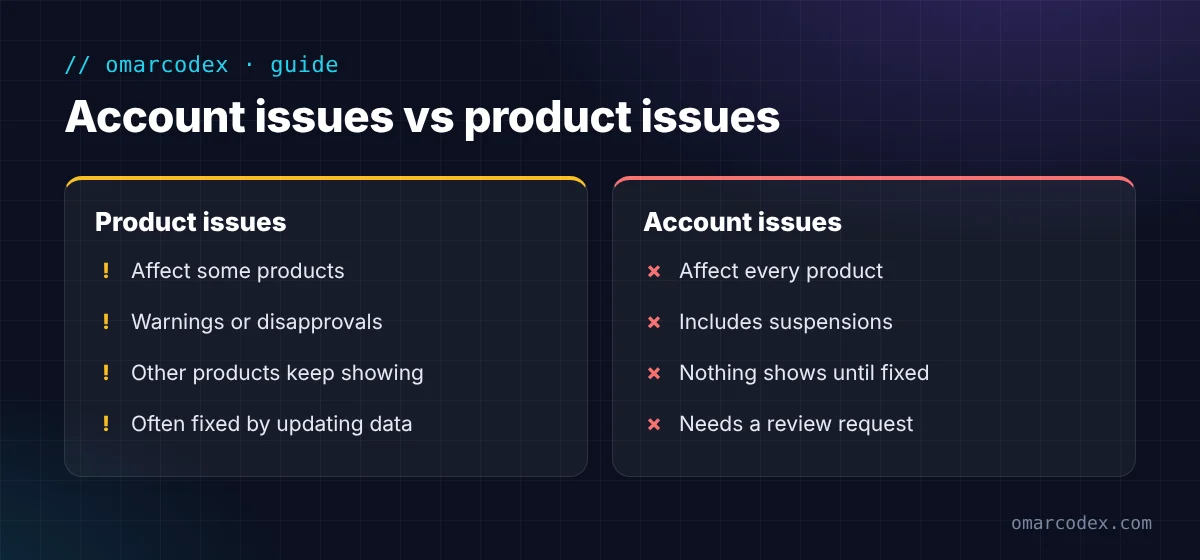
- Product issues affect only some products. You'll see warnings or disapprovals on those items. Your other products keep showing.
- Account issues (Google calls them "setup and policy issues") affect every product. A suspension is an account issue. Nothing shows until it's fixed.
You'll find both under Products > Needs attention. Account issues also show in a banner at the top of the account.
The 4 Policy Groups Behind Most Suspensions
Google's Shopping ads and listings policies cover four areas.
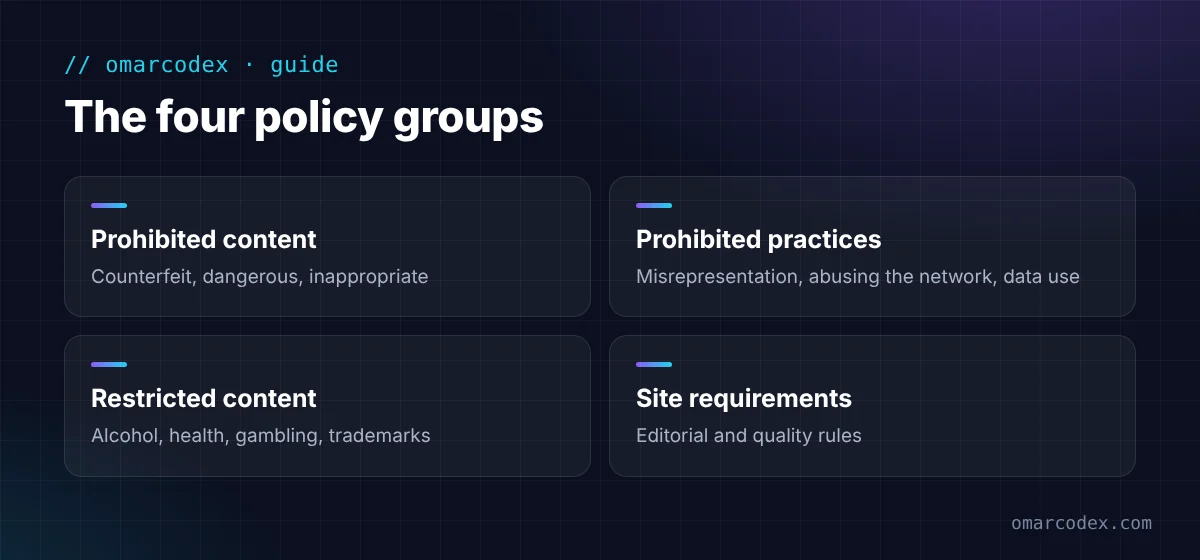
1. Prohibited content
Products you can't sell on Google at all:
- Counterfeit products
- Dangerous products
- Products that help people cheat or deceive
- Inappropriate content
- Unsupported Shopping content
2. Prohibited practices
Things you can't do as a business:
- Misrepresentation: the most common suspension we see. It means Google doesn't trust your store's honesty or transparency.
- Abusing the Shopping network: for example, trying to get around Google's review process.
- Data collection and use: handling customer data badly, like taking card details on a page that isn't secure.
3. Restricted content
Products you can sell only with limits. Examples include alcohol, healthcare and medicines, gambling-related content, and products that use other brands' trademarks or copyrights.
4. Site and editorial requirements
Quality rules for your listings and site, like clear titles, good images, and well-written content.
Warning First, or Suspended Right Away?
Not every suspension comes the same way.
- With a warning: for most issues, Google sends an email and gives you a warning period. Your products keep showing, but they may get less reach. If the issue is still there when the period ends, Google suspends your account.
- Without a warning: for serious ("egregious") issues, Google may suspend the account right away. Under the misrepresentation policy, this includes things like a false business identity or hidden fees.
Google's review guide says warning periods are 7 or 28 days. You can request one courtesy review at any time during that window.
How to Fix a Google Merchant Center Suspension: Step by Step
Step 1: Find the exact issue
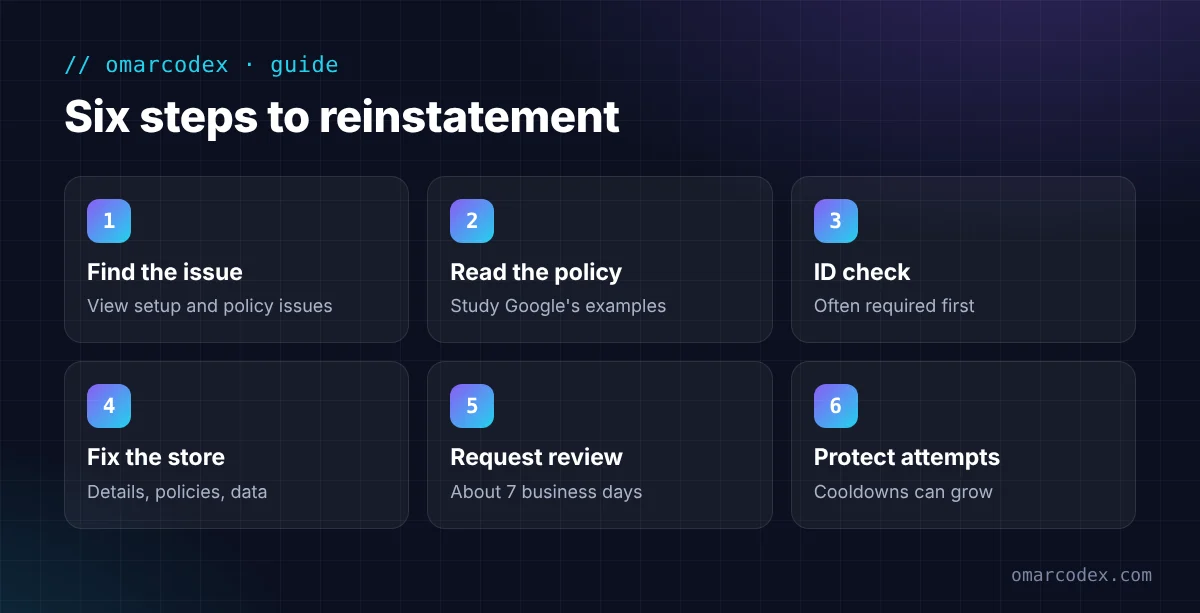
Go to Products > Needs attention > View setup and policy issues. Note the issue name, the date, and any linked policy. Check your email for Google's notice too.
Step 2: Read the policy for that issue
Open the policy Google links to. Read the examples. They show what Google looks for.
Step 3: Complete Google's ID check
Google says you often must finish verification before you can ask for a review of a suspended account. Look for the request in your account and finish it first.
Step 4: Fix your whole store, not just one thing
For misrepresentation issues, Google points to three areas:
- Business details: your name, address, phone, and email are clear on your site and match your account.
- Policies: your return and shipping policies are clear, work, and match your Merchant Center settings.
- Data consistency: prices and stock in your product data match your website.
For product policy issues, remove or fix the products that break the rule. Then check that no similar products are left.
Want an expert to check before you use a review? You can get a free quote for your GMC reinstatement.
Step 5: Request a review
Back in View setup and policy issues, choose "I fixed the issue" or "I disagree with the issue." Then click Request review. Google says to wait about 7 business days. You'll get an email when you ask and when it's done.
Step 6: Don't burn your review attempts
Google's rules are strict here:
- You may get only one chance to disagree with an issue.
- If issues aren't fixed by the second attempt, a one-week cooldown may begin.
- The cooldown may get longer with each failed review.
- Google support can't shorten it.
So fix everything first, then ask once.
Shopify and WooCommerce Notes
- Shopify: the Google & YouTube app syncs products and shipping. Make sure your shipping profiles and business info are correct in Shopify, since the app sends them to Google. See our Google Merchant Center for Shopify guide.
- WooCommerce: check that your plugin sends the same prices and stock your store shows, including sale prices.
- Both: remove demo content, empty categories, and fake sale banners before you request a review.
Common Mistakes That Keep You Suspended
- Requesting a review right away without real changes.
- Fixing products when the problem is the account. A suspension is about your whole store.
- Skipping the ID check.
- Opening a new account. It can look like you're trying to get around the review, which is its own policy problem.
- Leaving one old detail behind, like an old address on a policy page.
FAQ
How long does a Google Merchant Center suspension last?
It lasts until you fix the issue and Google approves a review. Google says reviews take about 7 business days. Failed reviews can add cooldowns, so the total time depends on how well you fix it.
Why did Google suspend my Merchant Center without a warning?
Google may suspend right away for serious issues. These include some misrepresentation cases, like a false business identity or hidden fees. Most other issues get a 7- or 28-day warning first.
Can I still run Google Ads if Merchant Center is suspended?
Your Shopping and product ads stop because they need approved products. Other campaigns may still run, but check Google Ads for its own issues. Our guide to a suspended Google Ads account covers that side.
What is the most common Merchant Center suspension?
Misrepresentation is the one we see most often. It's about trust: business details, policies, and pricing that don't add up. Read our misrepresentation fix guide for the full steps.
Can I appeal more than once?
Google says you may get only one chance to disagree with an issue. You can request more reviews after fixing things, but failed reviews can trigger longer cooldowns.
Get Back on Google Shopping
A Google Merchant Center suspension feels like a dead end, but it usually has a clear path out. Find the exact issue, complete verification, fix your whole store, and then request one careful review.
If you'd like help, we fix Merchant Center suspensions for online stores. Get a free quote for your GMC reinstatement or see our Google Merchant Center service.
Written by Omar Faruk
Full-Stack Developer — WordPress, Laravel & Shopify
I'm a full-stack web developer who has shipped news portals, company sites, multi-user web apps and Shopify stores for clients around the world. I care about clean code, fast pages and websites that actually bring in sales.
Need help with this on your site?
I can set it up for you — quick turnaround, fixed price.


