
Google Merchant Center Account Setup: 2027 Guide to Getting Approved

// tl;dr
Get your website ready first, pick the right country (you can't change it), match business info everywhere, verify and claim your site, set shipping and returns to match your pages, then add a small set of clean products.
Most Merchant Center suspensions start on day one. A store owner signs up fast, skips a few settings, and uploads products. A week later, Google flags the account.
A careful Google Merchant Center account setup prevents most of that. This 2027 guide works for any platform: WooCommerce, BigCommerce, Wix, or a custom site. If you use Shopify, also read our Google Merchant Center for Shopify guide.
We'll go step by step, in the same order we use for client stores.
Before You Sign Up: Get Your Website Ready
Google looks at your website as soon as you connect it. So fix it first. Google's guidelines to keep your account approved ask for clear contact details and a working checkout. They also ask for secure payment pages and clear terms before and after purchase.
Here's our short pre-launch list:
- Contact details: business name, address, phone number, and an email on your own domain.
- Policy pages: shipping, returns and refunds, privacy, and terms. Link them in your footer.
- Return policy: state it clearly, even if you don't accept returns. Google asks for this.
- Checkout: shoppers can add to cart and pay. At least one normal payment method. SSL on every page.
- About page: who you are and what you sell.
- No placeholders or fake claims: no demo text, empty categories, fake reviews, or fake sale timers.
- One language: use the same language on your site, your product data, and your account.
Step 1: Create Your Merchant Center Account
Go to merchants.google.com and sign in with the Google account you'll use for the business.
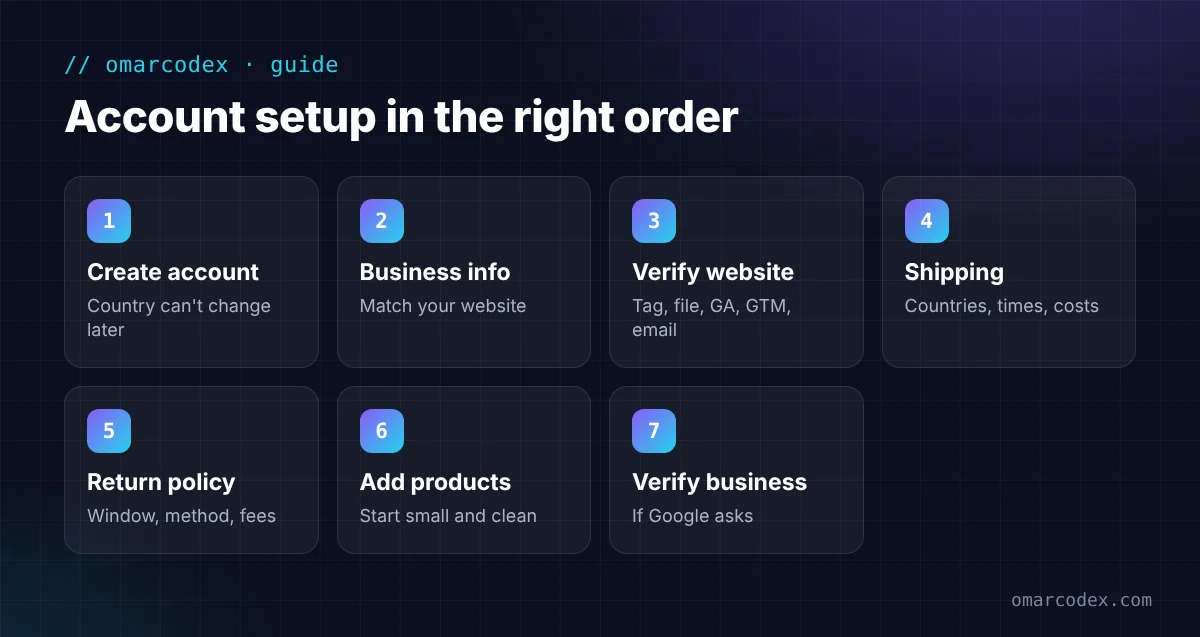
Keep two rules in mind:
- One Google account email can create only one Merchant Center account.
- The country you pick at sign-up can't be changed later. Pick the country where your business is based.
Google asks for your store name, business address, and how customers buy from you (online, in a store, or both). Use your real legal or trading name. Make it match your website.
Step 2: Fill In Your Business Info
Open Settings > Business info. Add your business name, address, and customer service contact. Use exactly the same details your website shows.
This is where many misrepresentation problems start. One different phone number or an old address can be enough to raise a flag.
Step 3: Verify and Claim Your Website
Next, prove the website is yours. Go to Settings > Business info > Edit online store, enter your URL with https://, and continue.
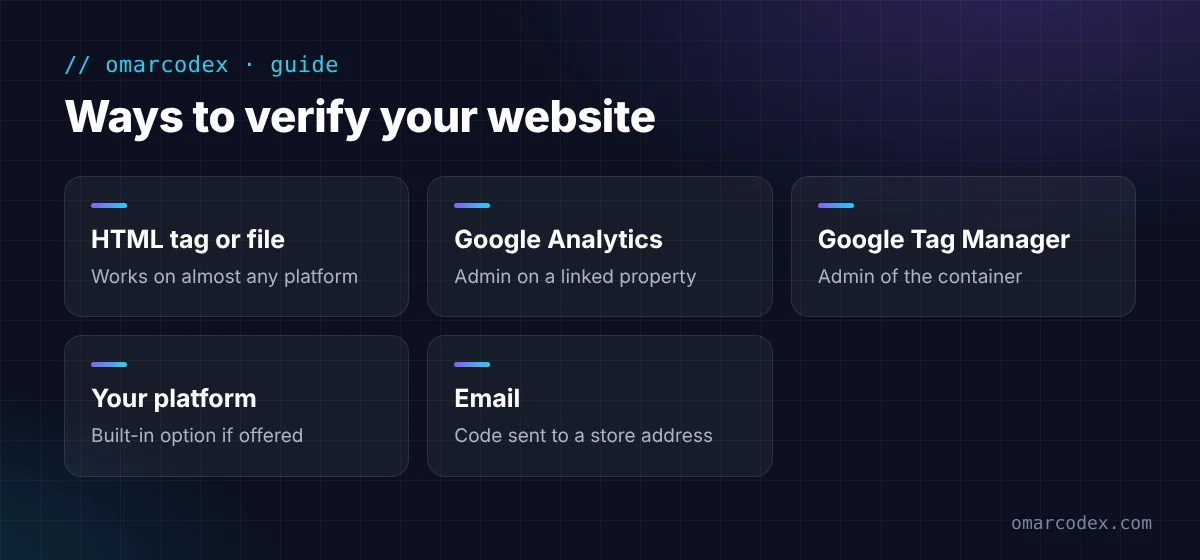
Google's verify and claim guide lists these methods:
- HTML tag or file: add a small tag or file to your site. This works on almost any platform.
- Google Analytics: if you're an admin on an Analytics property linked to the site.
- Google Tag Manager: if you're an admin of the container.
- Your ecommerce platform: some platforms offer a built-in option.
- Email verification: a code sent to an address linked to your store.
Only one Merchant Center account can claim a website. If an old account already claimed it, you'll need to sort that out first.
WooCommerce note: the free Google for WooCommerce extension can connect your store, sync products, and set up ads from your WordPress admin.
Step 4: Set Up Shipping
Go to Products & store > Shipping and returns, then Shipping policies > Add shipping policy. Choose:
- the countries you ship to,
- which products the policy covers,
- your handling time and transit time,
- your shipping cost (free, flat rate, by price, by weight, and more).
Match your website exactly. Google says products may be disapproved if no shipping service matches the product's currency. If you can't match cost exactly, Google suggests a slight overestimate.
Step 5: Set Up Your Return Policy
In the same Shipping and returns area, open Return policies > Add return policy. Google's return policy setup page asks for:
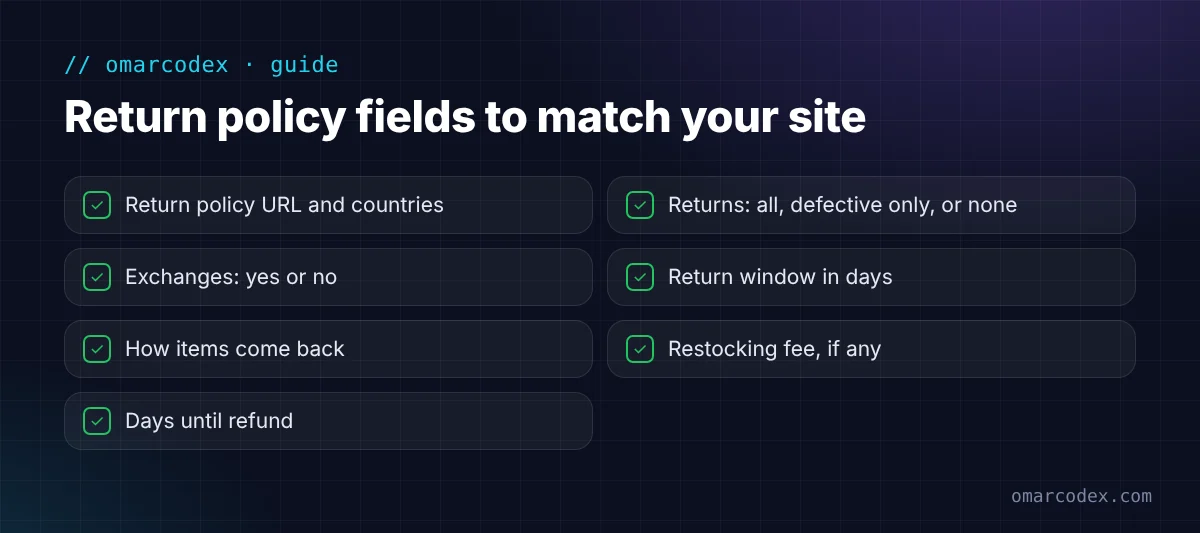
- your return policy URL and countries,
- whether you accept returns (all items, defective only, or none),
- whether you offer exchanges,
- the return window in days,
- how customers send items back,
- any restocking fee,
- how many days refunds take.
Every answer should match your return page word for word. A 30-day window on your site and 14 days in Merchant Center is a classic mismatch.
Not sure your setup is clean? Get a free quote for your GMC setup or reinstatement and we'll check it before Google does.
Step 6: Add Your Products
You can add products in a few ways:
- From your platform: an app or plugin syncs products for you.
- From your website: Google can find products on your site if it has product structured data and isn't blocked by robots.txt.
- A file or Google Sheet: good for small stores.
- The Content API: for developers and large catalogs.
Each product needs an ID, title, description, link, image, price, and availability. Add a brand and a GTIN (barcode) where they exist. Google's product data rules also say images must be at least 500 x 500 pixels. Enforcement starts January 31, 2027.
Start with a small, clean set of products. Fix their errors, then add the rest.
Step 7: Complete Business Verification If Asked
Google may ask you to verify your business. It can ask for a selfie check, a photo ID, or business documents like a registration or tax certificate. Google's business document page says your legal name and address must match your account exactly.
Two tips from Google's rules:
- The person who starts verification must finish it.
- Use clear photos of real documents. No screenshots or photocopies.
Common Google Merchant Center Account Setup Mistakes
- Choosing the wrong country. You can't change it later.
- Using a personal Gmail for the business. Use an account the business will keep.
- Different details in different places. Website, Merchant Center, Google Ads, and payments profile must match.
- Shipping and return settings that don't match your site.
- Uploading products before the site is ready.
- Opening a second account because the first one had problems. Fix the first one instead.
What Happens After Setup
Google reviews your products and your website. Approved products start showing in free listings. Products can also show as limited, under review, or not approved.
Sign in regularly. Google says accounts go inactive if no one signs in for 14 months.
Got a warning or suspension? Read our guides to Google Merchant Center suspension and fixing a misrepresentation suspension.
FAQ
Is a Google Merchant Center account free?
Yes. Creating an account and showing products in free listings costs nothing. You only pay if you run ads.
Can I have more than one Merchant Center account?
One Google account email can create one Merchant Center account. Agencies that manage many stores use a multi-client account. Only one account can claim a website.
How do I verify my website in Merchant Center?
Go to Settings > Business info > Edit online store. Then prove you own the site. You can use an HTML tag, a file, Google Analytics, Google Tag Manager, your platform, or email.
Do I need a return policy to use Merchant Center?
Google asks you to state your return and refund policy clearly on your site, even if you don't accept returns. You can also add it in Merchant Center under Shipping and returns.
Can I change my Merchant Center country later?
No. Google says the country chosen at sign-up can't be changed. Pick the country where your business is based.
Set It Up Once, Set It Up Right
A good Google Merchant Center account setup takes a little longer. But it saves you from the most common suspension triggers. Ready your website, match your details everywhere, and add clean product data.
Want an expert to set it up with you? Get a free quote for your GMC setup or reinstatement. Or learn more about our Google Merchant Center service.
Written by Omar Faruk
Full-Stack Developer — WordPress, Laravel & Shopify
I'm a full-stack web developer who has shipped news portals, company sites, multi-user web apps and Shopify stores for clients around the world. I care about clean code, fast pages and websites that actually bring in sales.
Need help with this on your site?
I can set it up for you — quick turnaround, fixed price.


